Batch conversion
Process entire folders of MSG files in a single run. Progress bar, ETA, pause/resume, and an automatic log file are all included.
No more emails locked away. Convert single messages or entire archives to EML and MBOX — native, sandboxed, and fully offline.

Built for IT administrators, compliance leads, and anyone who refuses to leave their Outlook archive behind when moving to macOS.
Process entire folders of MSG files in a single run. Progress bar, ETA, pause/resume, and an automatic log file are all included.
Native rendering with HTML & plain text, all metadata, and attachments. Built on a custom CFB parser with no external dependencies.
Open and compare multiple emails side by side. Each gets its own window with its own history.
Archive in the open MBOX format — perfect for Apple Mail, Thunderbird, or long-term storage. Single and batch export.
Subjects, senders, and full text of your MSG files are indexed — instantly findable from Finder.
Just tap the spacebar in Finder: subject, sender, recipients, and content — without opening the app.
Fully localized in English and German. Automatic detection of the system language, or pick your own.
EML (Mail.app-compatible), PDF, print, or share via AirDrop. Extract attachments with a single click.
Everything stays on your Mac. No cloud, no telemetry, with built-in phishing protection for links.
From the first open to a batch run across thousands of files — a clean SwiftUI interface, Light and Dark Mode ready, fully keyboard-driven.
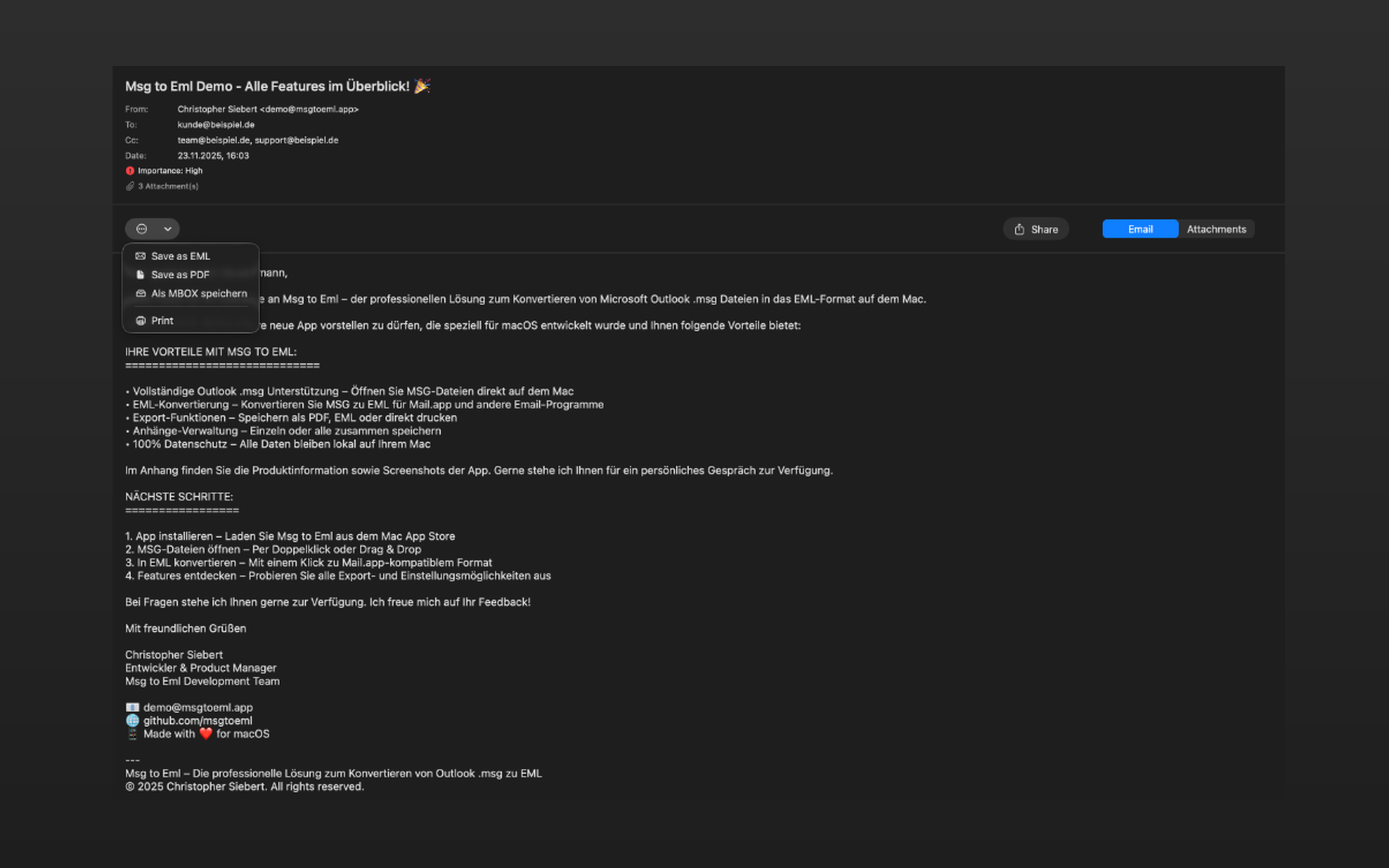
Native rendering with HTML & plain text, all headers and attachments. Export as EML, PDF, MBOX, print, or share via AirDrop — all from one menu.
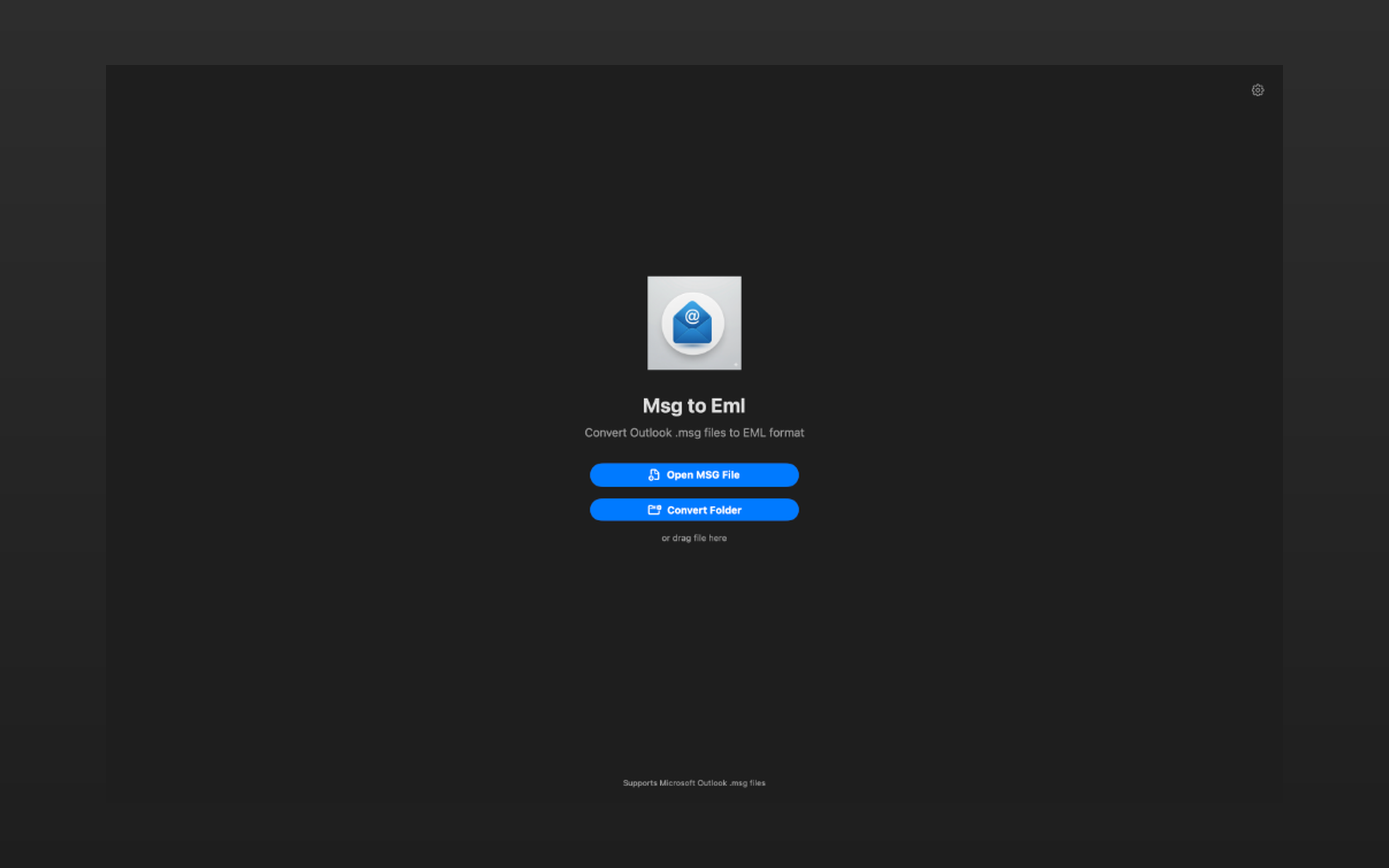
Get started in one click: open a single MSG file, convert an entire folder — or simply drag & drop.
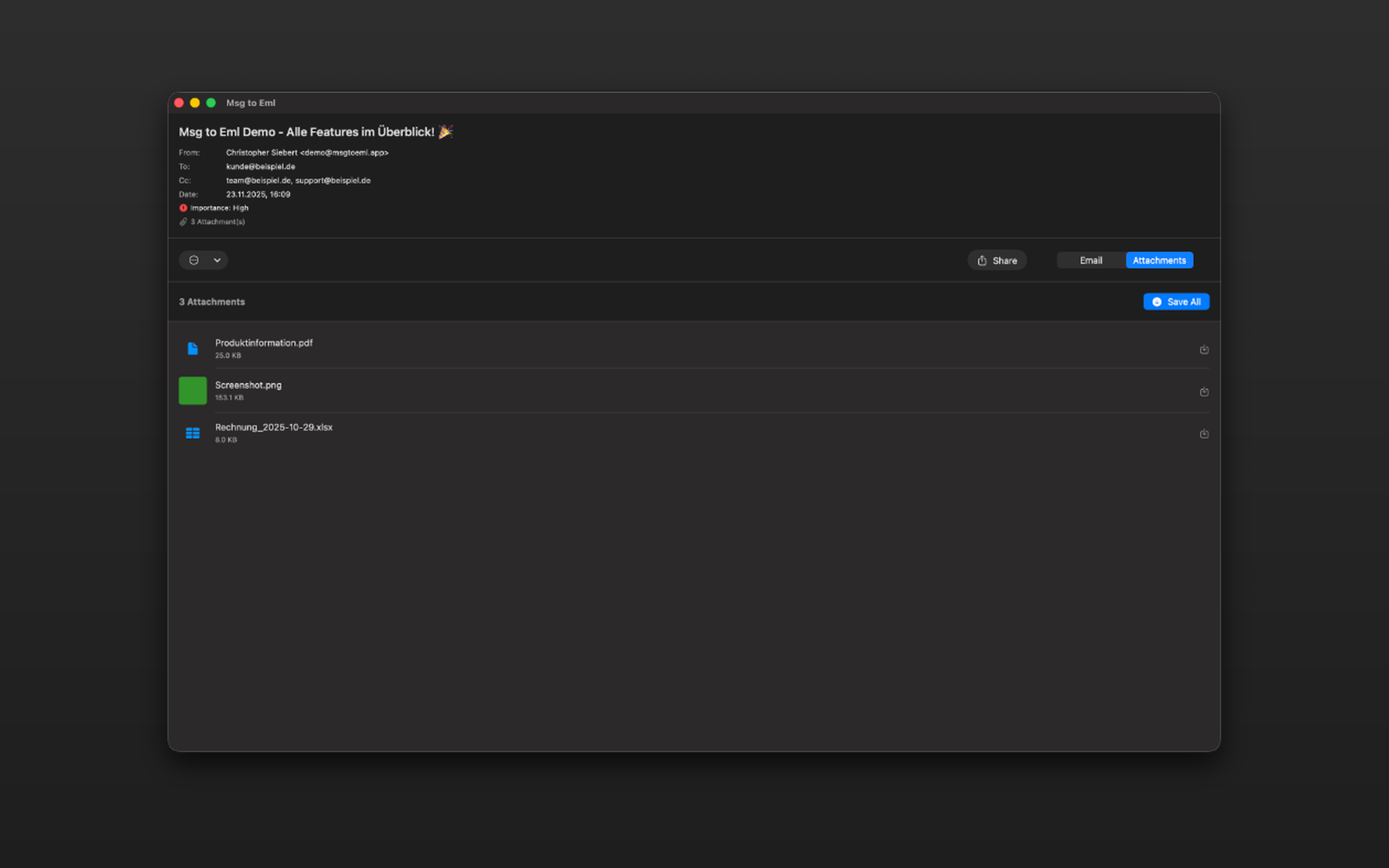
All attachments in a clear list. Save them to disk individually or in a single batch with one click.
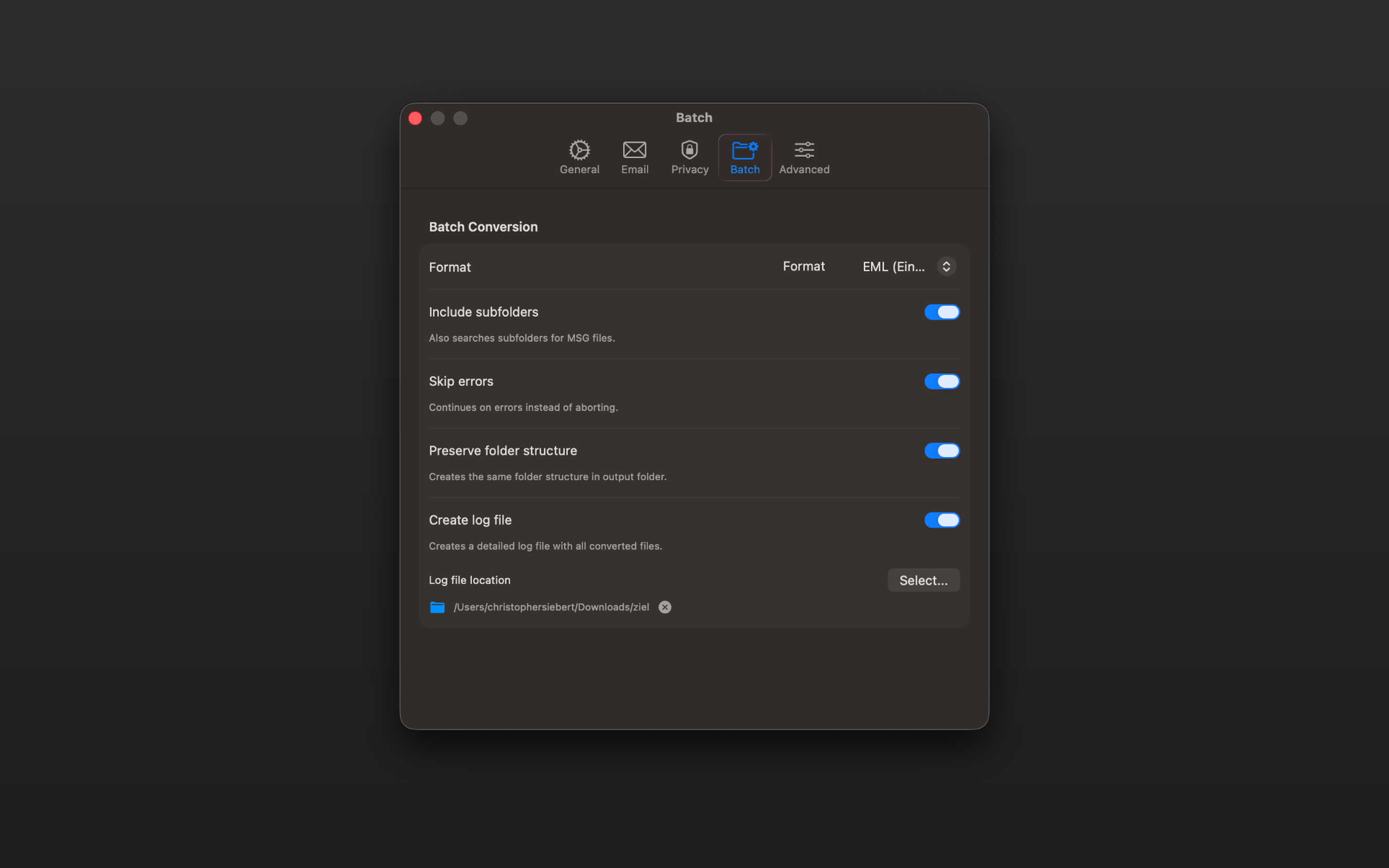
Format, subfolder behavior, error handling, and folder structure — configurable for any migration or archival workflow.
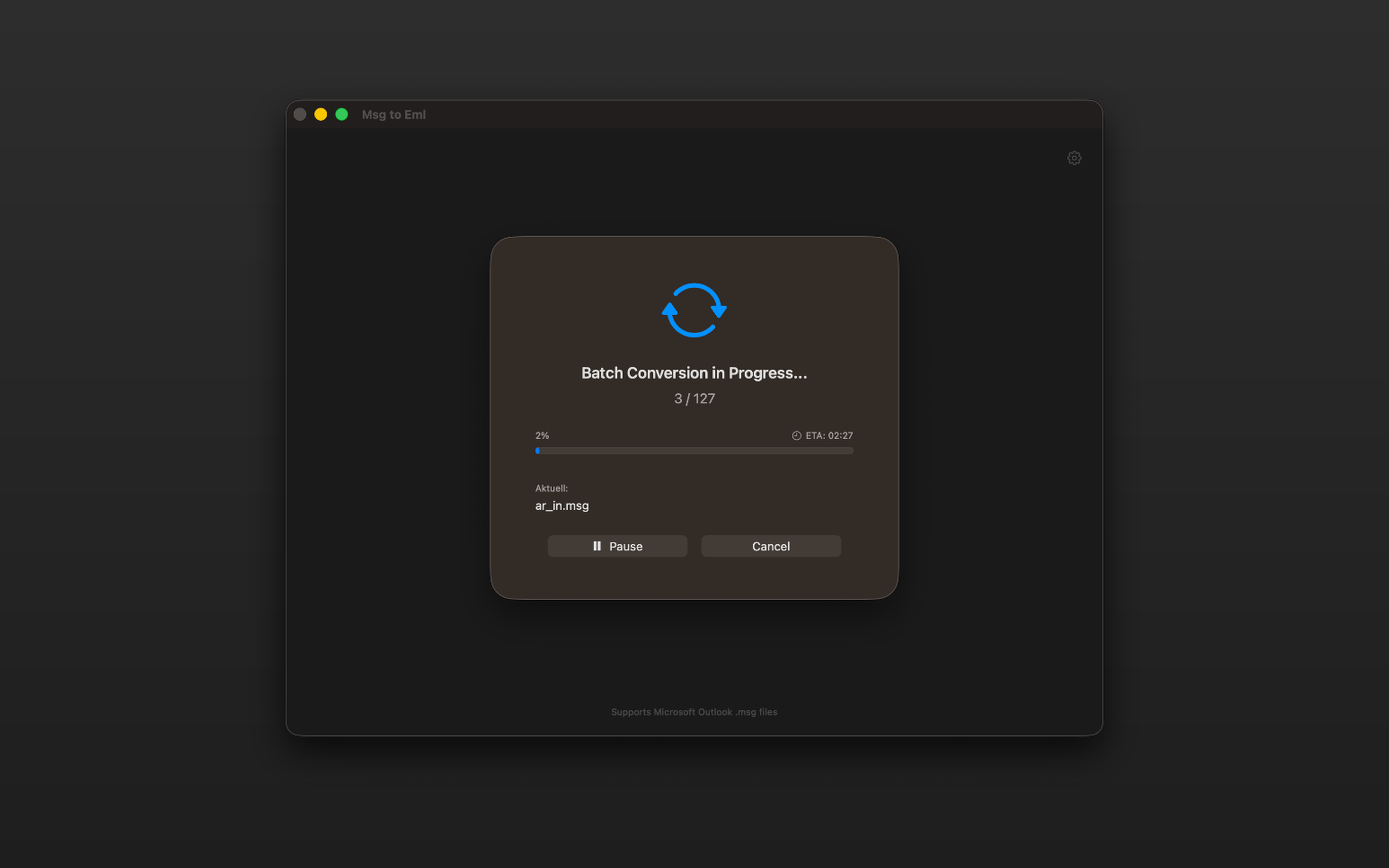
Per-file live status, pause/resume, and an automatic log file — perfect for audits and compliance evidence.
Designed for migrations, handovers, and compliance archiving — with everything you need to document the results clearly.
Batch mode converts entire directories recursively, preserves folder structure on request, and skips broken files instead of stopping.
Precise percentage and estimated time remaining in real time.
Stop conversion at any time and pick up later without losing data.
Date, time, file size, and status for every file — ideal for audits.
Broken files are skipped so the run keeps going.
Recursive search — optionally preserving the original folder structure.
Optionally combine all emails in a folder into a single MBOX archive.
Switching from Outlook to macOS Mail? Convert every .msg archive to EML in one pass and import them directly.
Preserve Outlook archives in the open EML or MBOX format — independent of any specific mail app.
Detailed log files document every conversion — traceable for GoBD, GDPR, or ISO audits.
.msg is Microsoft Outlook's proprietary format for individual emails. EML, by contrast, is an open standard (RFC 5322) that Apple Mail, Thunderbird, and nearly every mail program can read directly. Converting makes your Outlook archives portable and ready for long-term storage.
No. MsgToEml is a sandboxed macOS app with no network access for the conversion process. All data is processed locally — no cloud, no tracking, no telemetry. Remote images in HTML emails aren't loaded by default either.
There is no hard limit. Batch conversion handles thousands of files with a progress bar, ETA, pause/resume, and an automatic log file. Recursive processing of subfolders can be enabled as an option.
Yes. EML files can be dragged and dropped into any mailbox folder. Alternatively, export an MBOX archive and use the built-in mailbox importer in Apple Mail or Thunderbird.
Yes. MsgToEml is built as a Universal Binary, optimized for Apple Silicon (M-series) and Intel, and supports macOS 13 Ventura through macOS 26 Tahoe. Written in Swift / SwiftUI with a custom MSG/CFB parser and no external dependencies.
Yes. Attachments stay embedded in the EML or MBOX file and can also be extracted and saved separately with a single click.
EML stores each email as a standalone file — ideal for selective filing or forensics. MBOX bundles multiple emails into a single archive — ideal for importing as a mailbox folder into Apple Mail or Thunderbird.
Get it for macOS now — one-time purchase, work locally, no subscriptions.